
Modifying the Smart form values
You can modify the smart form values after submitting it to the Workflow. Follow the below steps to update the smart form's value from the Workflow item viewer.
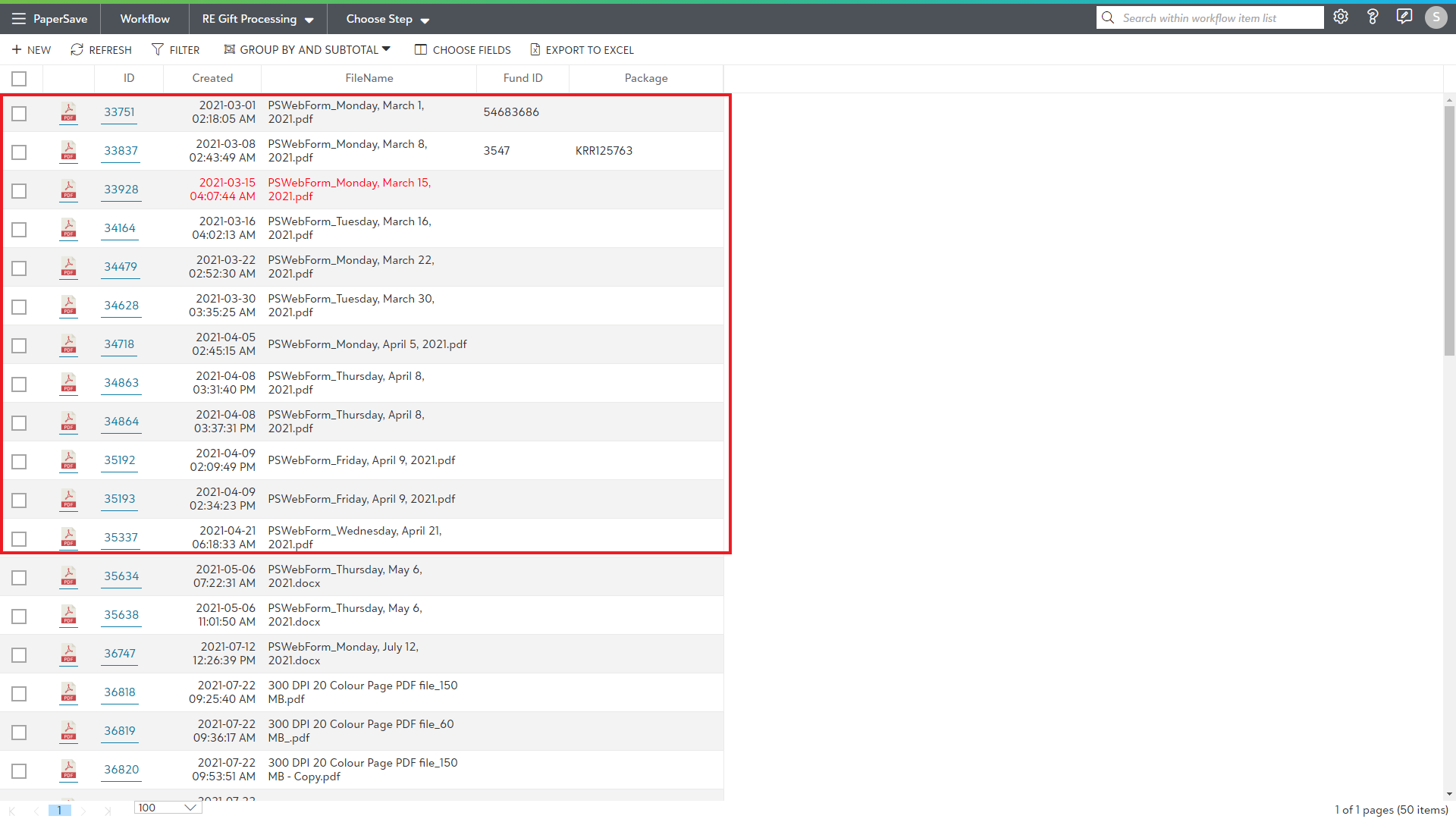
1) Navigate to the Workflow Area and choose the desired Workflow which contains Workflow items submitted via Smart form(s). A list of Workflow items submitted via smart form appears, as shown in the below screen.
2) Once you open the item, click on Edit Form button from the top level toolbar.

3) On clicking Edit form button, PaperSave 6x login page appears. Enter your 6x credentials and smart form opens in an edit mode as shown below.

4) Now, make the changes and click on "click here" in status bar as shown below or close the document to save the smartform changes.

5) Once you save the changes, you return back to PaperSave 7x. Here, you can view all the changes made till now from the Version History option.

6) Now, when you click on Show History option and Document version history dialog box appears as shown below where you can view the previous changes by clicking on an eye icon under Actions.
